
- Over 50 stores use it with an active licence
- From PrestaShop 1.7 to 8.2
- €70 one-off, no subscription
Why a ready-made module
You could write a connection between PrestaShop and Danea Easyfatt from scratch, perhaps with help from an AI. But that means studying the XML format Easyfatt expects, translating customers, rows, shipping costs, discounts and payments, recognising who has already paid, handling sizes and colours, recipient code and PEC for Italian e-invoicing, and then reworking everything every time PrestaShop or Easyfatt is updated.
The module already does all of this and is used every day by real stores. You install it from the PrestaShop panel, enter two details, and from then on Easyfatt downloads the store's orders in one click, ready to become invoices. If something does not add up, the person who wrote it answers you, with 3 months of support included.
What it does
- Brings PrestaShop orders into Easyfatt as a customer order, invoice, accompanying invoice, delivery note, receipt, quote, pro forma or credit note.
- Sends the full customer with every order, with shipping address, VAT number, tax code, recipient code and PEC.
- Matches PrestaShop tax rates and payment methods to those in Easyfatt and marks as paid the orders in the statuses you choose.
- Also exports size and colour variants, shipping costs and discounts.
- Easyfatt downloads the orders straight from the store, or you import them from a file saved in the panel.
What you need
- Danea Easyfatt in the Enterprise One or Enterprise edition, the ones with the e-commerce connection.
- PrestaShop from 1.7 to 8.2.
- The module, €70 one-off with 3 months of support and a refund within 60 days. It also exists for Magento and OpenCart.
Installing the module
- 1
Upload the module
In PrestaShop open Modules › Module Manager, click Upload a module and choose the zip you downloaded after the purchase. When it is done the module appears in the menu as Danea EasyFatt, with the items Esporta Documenti, Aliquote IVA, Tipi Pagamento and Configurazione.
- 2
The licence is already set
If you bought the module on this site, the licence for the domain you entered in the order activates by itself when the order is completed. You add your test domain in the same order, before putting the module in the cart.
Configuring the module
Open Danea EasyFatt › Configurazione. The settings are in five tabs on the left, which open when you move the mouse over them. When you are done click Salva.
- 1
Access details
In the Dati d'accesso tab enter the email and password of a PrestaShop employee with an administrator profile. You can use your own or create one just for Easyfatt in Advanced Parameters › Team. These are the same credentials you will then enter in Easyfatt.
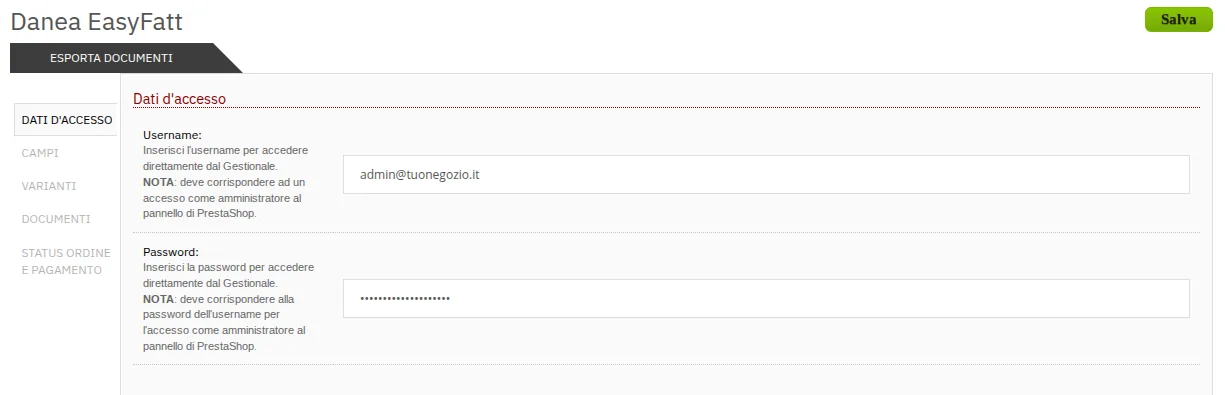
Email and password of a store administrator, the same ones Easyfatt will use. - 2
Fields
In Campi choose which product code to send to Easyfatt, for example the ID or the reference, the description for additional costs and the tax rate to use for those costs. In Codice destinatario e PEC you say where the store keeps this data for e-invoicing, in the «Other» field of the address or in the table of an e-invoicing module.
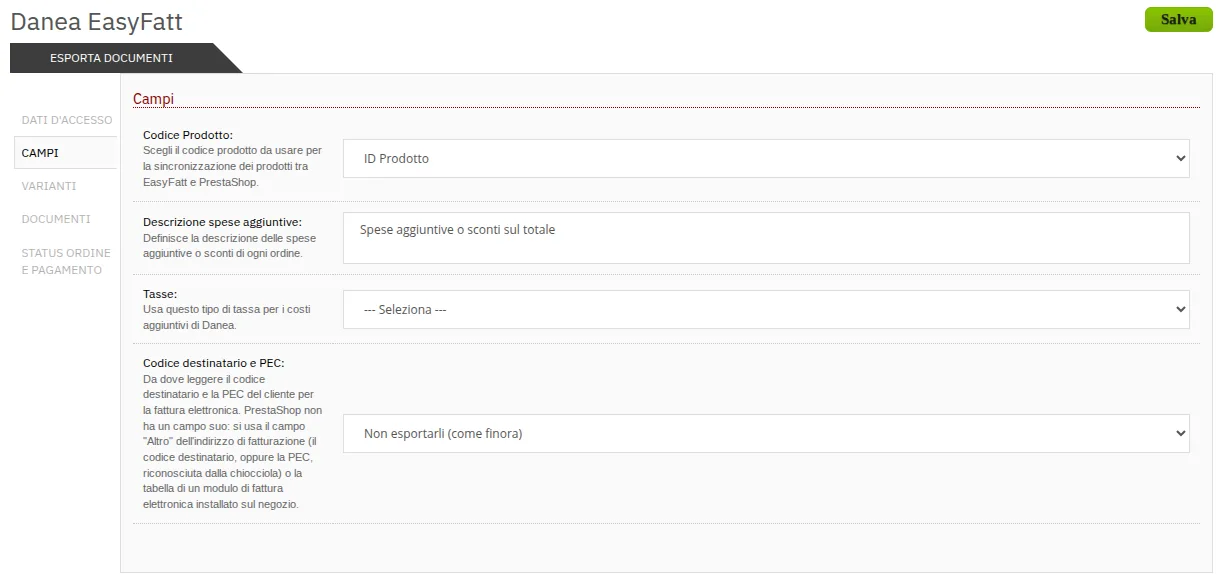
Product code, additional costs and e-invoicing data. - 3
Variants
If you sell products with size and colour, open Varianti, switch on Usa le varianti Taglia e Colore and enter the option names as you called them in Easyfatt. You can send them separately or joined in a single «Taglia - Colore» option.
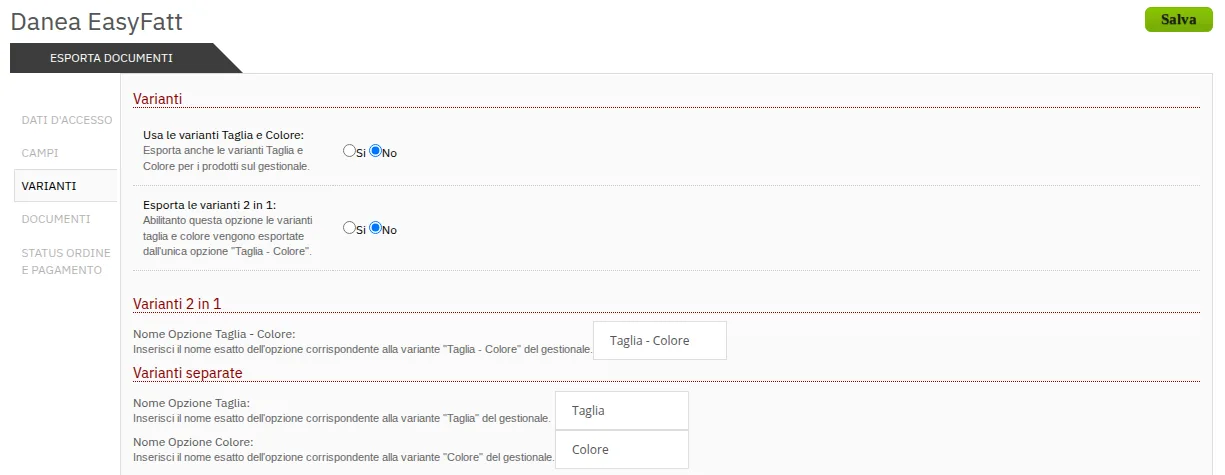
Size and colour reach Easyfatt with the names you use in the accounting software. - 4
Documents
In Documenti choose the type of document Easyfatt should create, usually Ordine cliente (customer order), and whether to send prices with VAT included or excluded. With VAT excluded Easyfatt recalculates the tax on net prices, useful if you mostly sell to businesses.
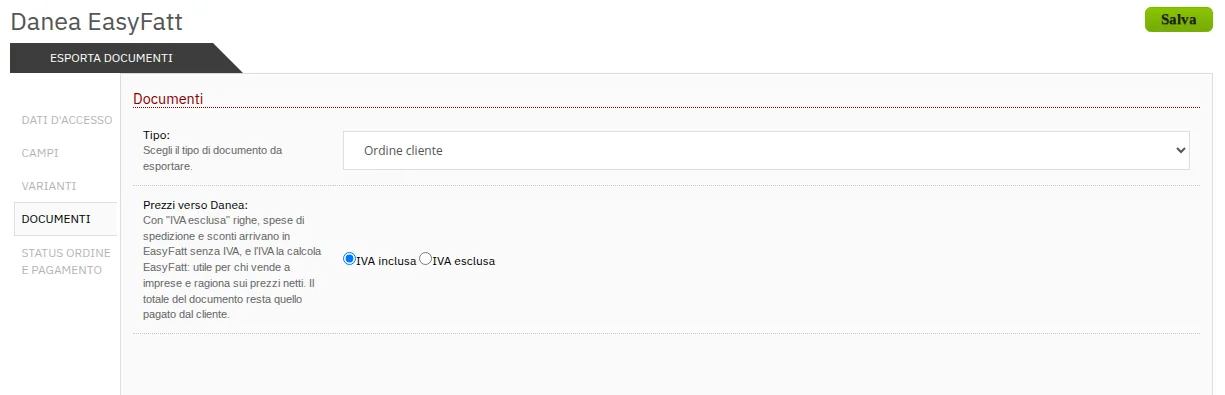
The type of document and how prices are passed. - 5
Order and payment statuses
In Status ordine e pagamento, in the first list choose the order statuses to send to Easyfatt, in the second the ones that mean «paid». This way every document in Easyfatt shows as already settled or still to be collected. To choose several statuses hold Ctrl while you click.
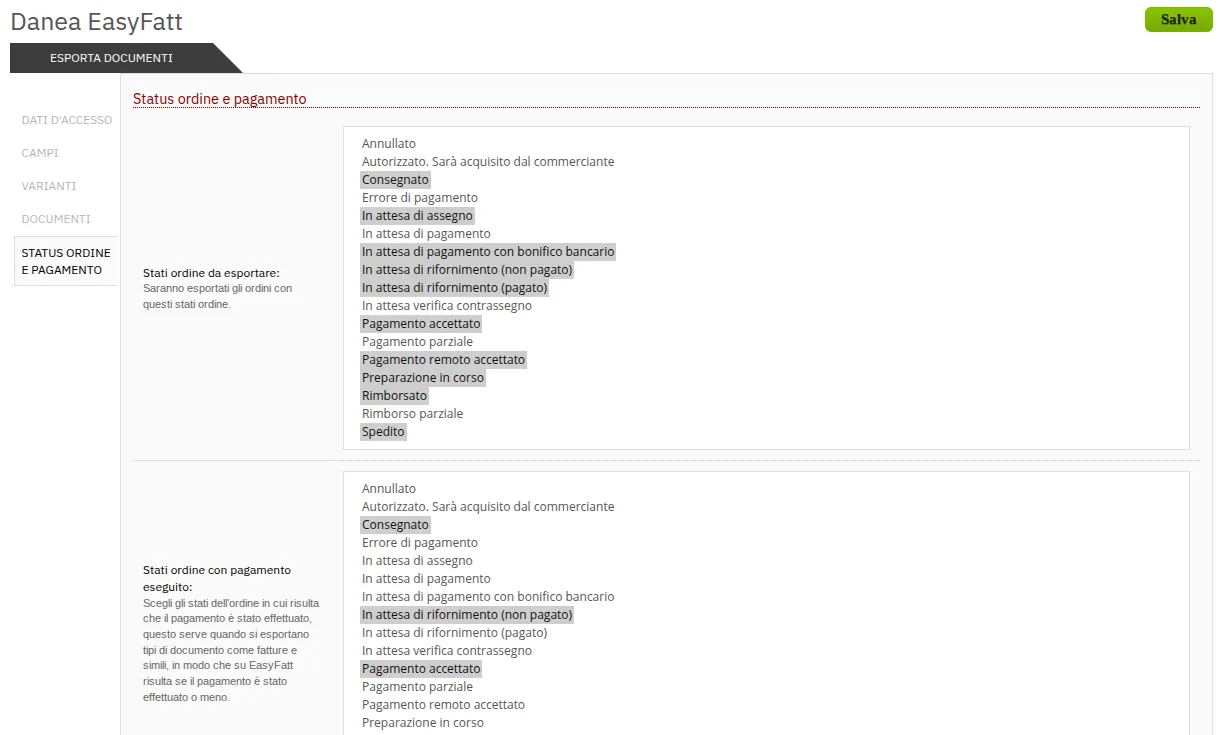
The chosen statuses are in grey, for example «Payment accepted» and «Shipped». - 6
Tax rates
In Danea EasyFatt › Aliquote IVA match each PrestaShop tax rate to the Easyfatt VAT code, for example 22 for the standard rate. A rate you do not match reaches Easyfatt as «FC», outside the scope of VAT, so it is worth matching them all.
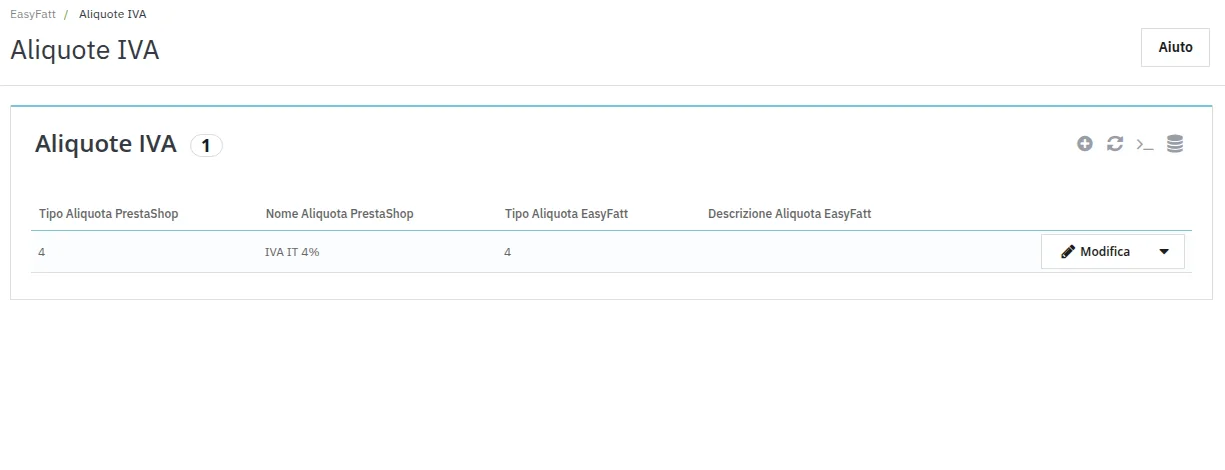
One match for each tax rate you use in the store. - 7
Payment types
In Danea EasyFatt › Tipi Pagamento match each PrestaShop payment module to the payment name in Easyfatt, for example bank wire to «Bonifico bancario». A payment you do not match arrives with the technical name of the module, for example «bankwire».
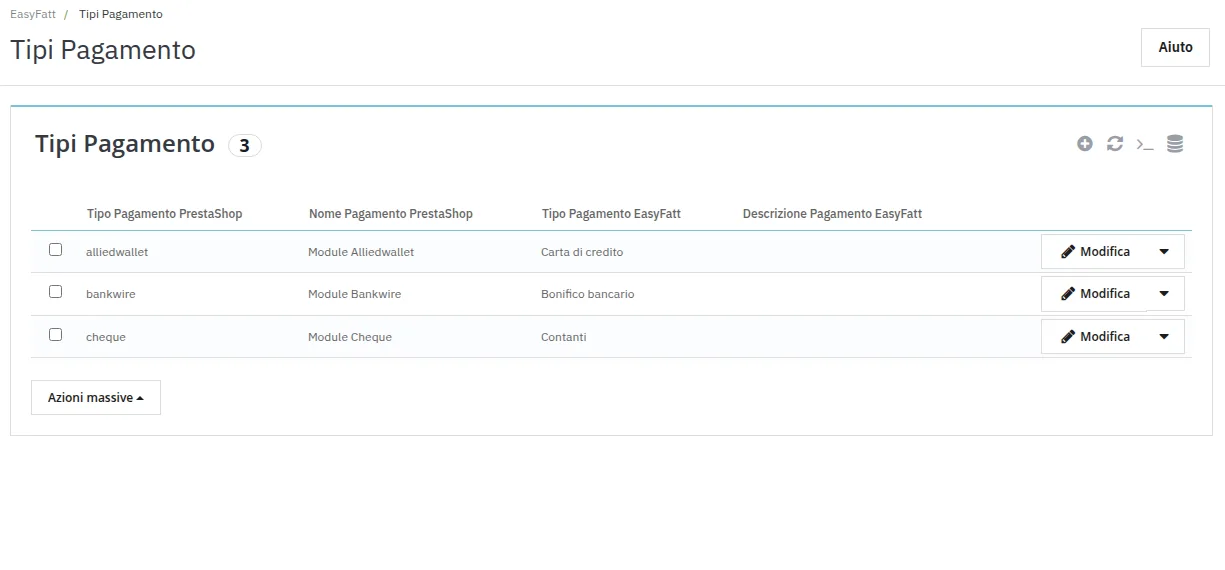
Each payment module of the store with the name you use in Easyfatt.
Downloading orders into Easyfatt
- 1
Copy the address for Easyfatt
Open Danea EasyFatt › Esporta Documenti. At the top you find the address to give Easyfatt, which looks like this.
https://www.tuonegozio.it/modules/imeeodeprs/direct/export.phpBelow it every download made is listed, with date, document type and number of orders. If you would rather not connect Easyfatt to the site, from here you save a file on your PC and import it into Easyfatt by hand.
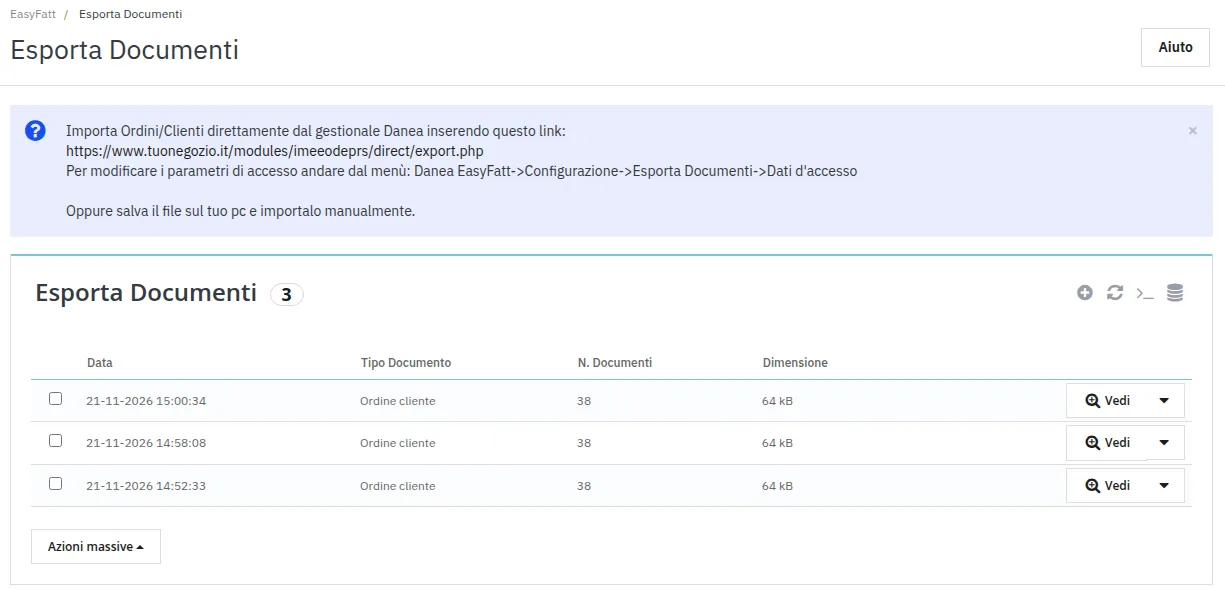
The address for Easyfatt and the list of downloads, 38 orders at a time in the test store. - 2
Enter it in Easyfatt
In Easyfatt open Strumenti › Scarica ordini da e-Commerce (in older versions Strumenti › E-commerce › Scarica ordini). In the Impostazioni tab paste the address and enter in Login and Password the email and password set in the module's access details, then click Scarica.
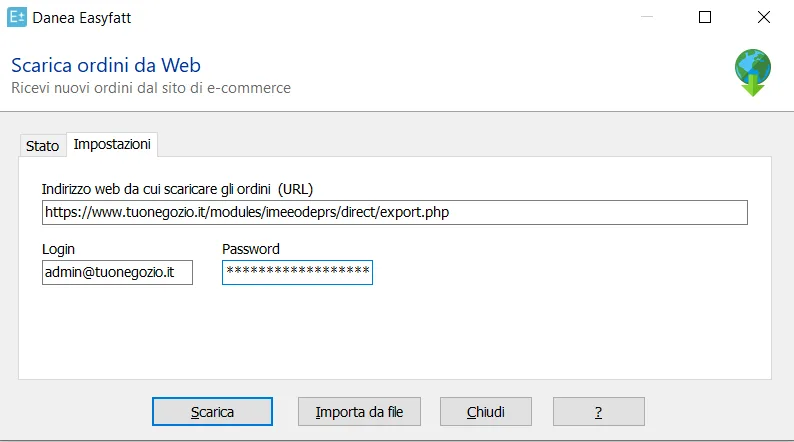
The module's address and the PrestaShop administrator's credentials. - 3
Import the orders and invoice
Easyfatt shows the orders that came from the store, with customer and total. With Importa each order becomes an Easyfatt document, already complete with customer, rows, VAT and payment. To invoice several orders together open Strumenti › Genera Fatture da....
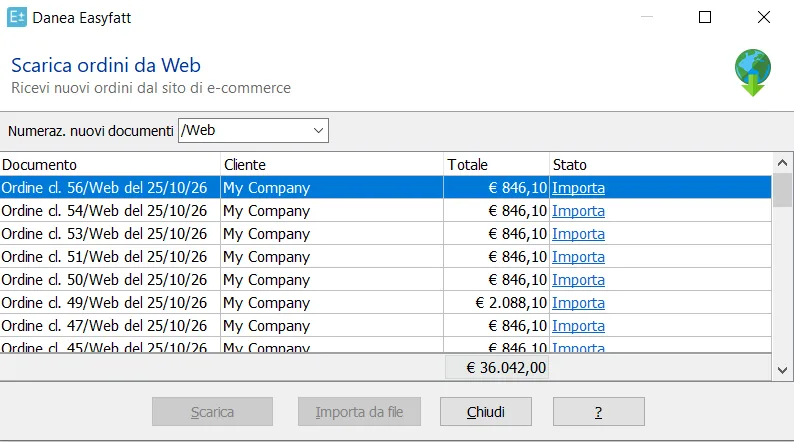
The test store's orders inside Easyfatt, each with its own Importa.
If something goes wrong
I cannot find the e-commerce items in the Easyfatt Strumenti menu
Danea includes the e-commerce connection in the Enterprise One and Enterprise editions of Easyfatt. Check which edition you have, because with the others the module has nothing to connect to.
Easyfatt gives the error «Authentication failed»
The login and password entered in Easyfatt are not the same as the module's access details. Copy them identically in both places, paying attention to capitals and spaces.
Easyfatt gives the error «Admin authentication failed»
The credentials match, but PrestaShop has no employee with that email and password, or the employee is disabled. Check in Advanced Parameters › Team and, if you changed the employee's password, update it in the module and in Easyfatt.
An order does not reach Easyfatt
Its status is not among those to export. Add it in the Status ordine e pagamento tab of the configuration and download again.
In Easyfatt the payment or the VAT is not right
The match is missing. Add the payment method in Danea EasyFatt › Tipi Pagamento or the rate in Aliquote IVA, with the exact name or code you use in Easyfatt.
The recipient code or the PEC does not arrive
In the Campi tab, under Codice destinatario e PEC, «Non esportarli» is still selected. Choose where your store keeps this data, the «Other» field of the billing address or the e-invoicing module you use.