
- Over 150 stores use it with an active licence
- OpenCart 3 and 4, up to 4.1.0.3
- €100 one-off, no subscription
Why a ready-made module
You could write a connection between OpenCart and Danea Easyfatt from scratch, perhaps with help from an AI. But that means reading and writing Easyfatt's XML files, creating and updating products, categories, manufacturers, price lists and variants without duplicating them, keeping stock in step, bringing orders back with customers, VAT and payments, and redoing it all when a new OpenCart version comes out, as happened with the move to version 4.
The module already does all of this and has been tested for years on real stores. You upload it from the OpenCart panel, enter the credentials in two places, and from then on the catalogue leaves Easyfatt in one click and orders come back to the accounting software with another. If something does not add up, the person who wrote it answers you, with 3 months of support included.
What it does
- Brings the catalogue from Easyfatt to OpenCart, with prices, stock, categories, manufacturers, size and colour variants and, if you want, the photos.
- Updates the products that already exist instead of duplicating them and, if you ask, removes the ones you no longer sell in Easyfatt.
- Brings the store's orders into Easyfatt as a customer order, invoice, delivery note or other document, with customer, VAT number, tax code, recipient code and PEC.
- Matches tax rates and payment methods and marks as paid the orders in the statuses you choose.
- Exports the OpenCart catalogue to an Excel file, useful for loading it into Easyfatt the first time.
What you need
- Danea Easyfatt in the Enterprise One or Enterprise edition, the ones with the e-commerce connection.
- OpenCart 3.0 or OpenCart from 4.0.0.0 to 4.1.0.3. Choose the right version when you buy it.
- The module, €100 one-off with 3 months of support and a refund within 60 days. It also exists for Magento and PrestaShop.
Installing the module
The steps and screenshots are from OpenCart 4. On OpenCart 3 you copy the package's upload folder into the store and VQMod is needed, as explained in the guide inside the zip. The configuration is the same.
- 1
Upload the module
In OpenCart open Extensions › Installer, upload the
imeiedeopc.ocmod.zipfile you find in the package and click the green button to install it. - 2
Enable the three modules
Open Extensions › Extensions, choose the Modules type and click the green install button on Danea EasyFatt: Importa/Aggiorna Catalogo, Esporta Ordini/Clienti and Esporta Catalogo.
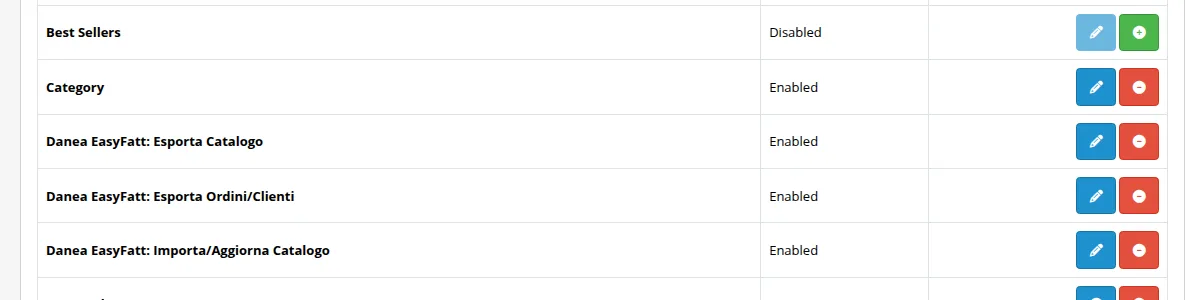
The three Danea modules installed and enabled, with the pencil to configure them. - 3
Grant the permissions
In System › Users › User Groups edit your group, usually Administrator, and tick under Access and Modify every entry starting with
extension/imeiedeopc/. The module does not grant them to itself: until they are ticked, its pages do not open and the Danea EasyFatt item does not appear in the menu.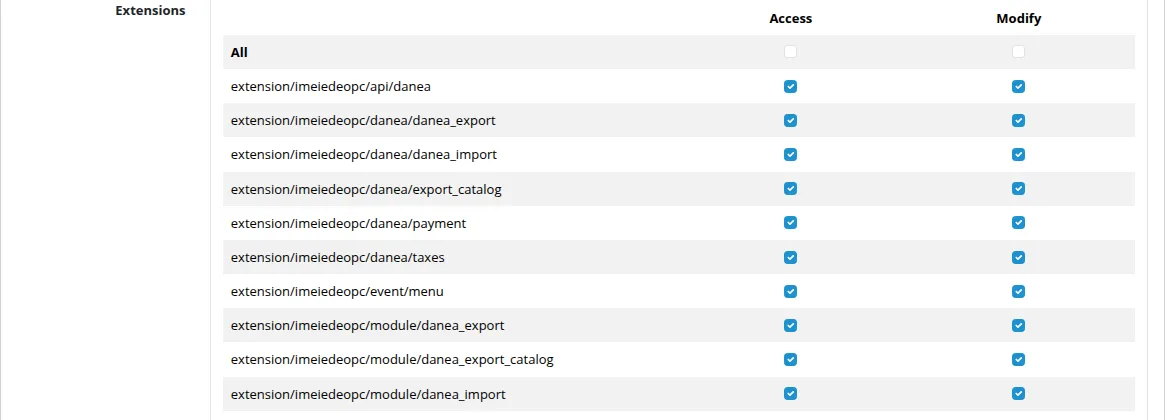
The module's entries, ticked under Access and Modify. - 4
The licence is already set
If you bought the module on this site, the licence for the domain you entered in the order activates by itself when the order is completed. You add your test domain in the same order, before putting the module in the cart.
Configuring the module
The settings open with the pencil next to each module, in Extensions › Extensions › Modules. After every change click the blue button to save.
- 1
Credentials for Easyfatt
In Importa/Aggiorna Catalogo and in Esporta Ordini/Clienti, Dati d'accesso tab, enter the username and password of an OpenCart administrator. You can create one just for Easyfatt in System › Users › Users, in the group you granted the permissions to. These are the credentials you will then enter in Easyfatt.
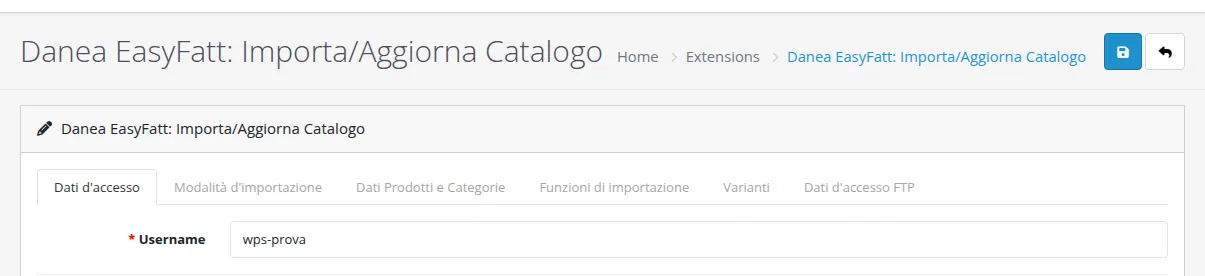
Username and password of a real store administrator. - 2
Prices and price lists
In Importa/Aggiorna Catalogo, Dati Prodotti e Categorie tab, set Assegna Listino 1 to Prezzo Prodotto: this way Easyfatt's price list 1 becomes the store price. You can give the other price lists to customer groups as a discount or special price. In the same tab choose which stores and languages to load the products into.
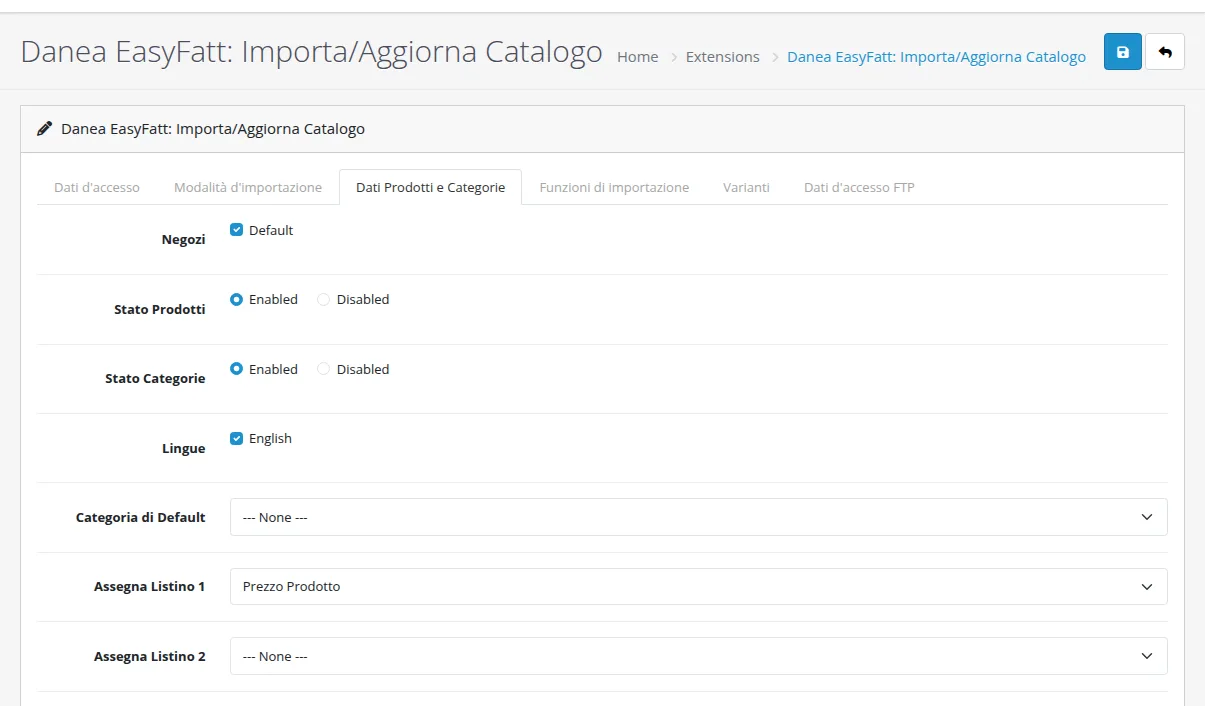
Without this step products arrive with a price of zero. - 3
Categories, photos and removed products
In the Funzioni di importazione tab you decide whether to create Easyfatt's categories and manufacturers automatically, whether to import photos or keep the store's, and whether to remove products that are no longer in Easyfatt. If the store also sells products you do not have in Easyfatt, leave the removal of products outside the price list set to No.
- 4
Customer fields
In Esporta Ordini/Clienti, Campi tab, choose which OpenCart fields to take the VAT number, tax code and recipient code or PEC from, the tax rate for shipping costs and the VAT code to use when a product has no tax rate.
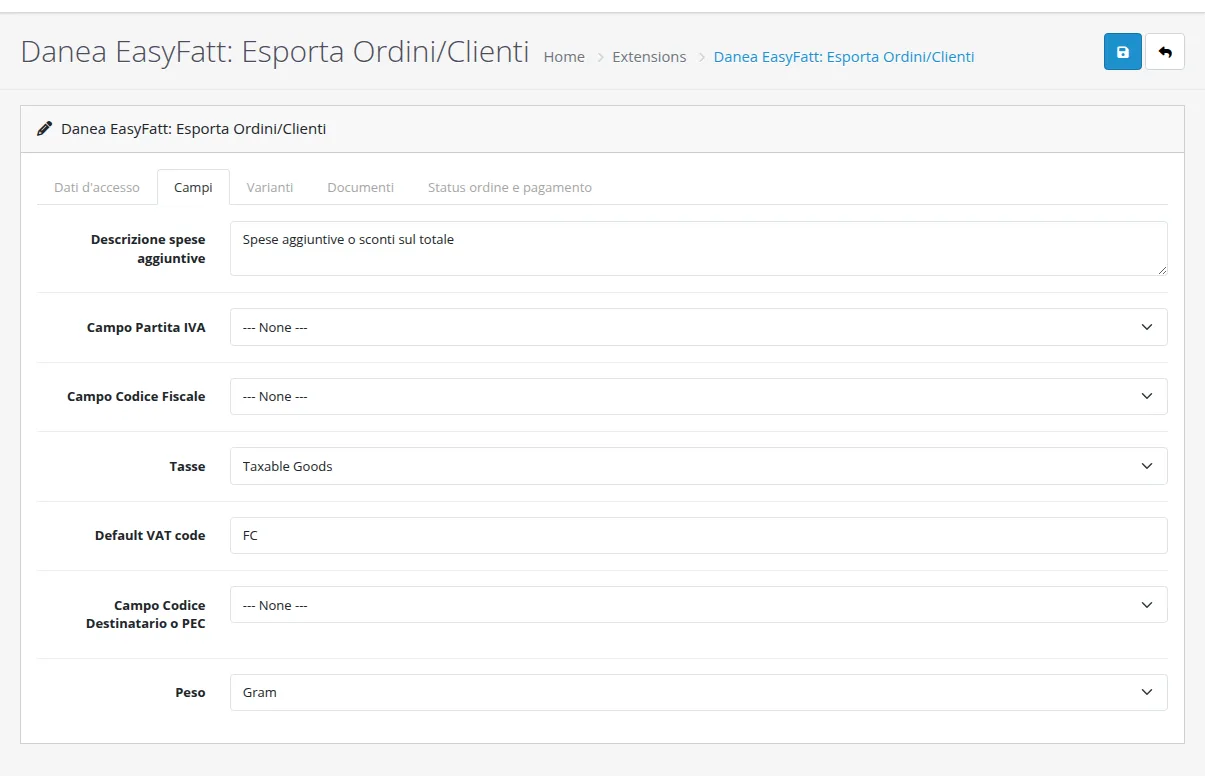
The e-invoicing data comes from the fields your store already uses. - 5
Order and payment statuses
In the Status ordine e pagamento tab choose in the first list the order statuses to send to Easyfatt, in the second the ones that mean «paid». In the Documenti tab you choose the type of document, usually Ordine cliente (customer order).
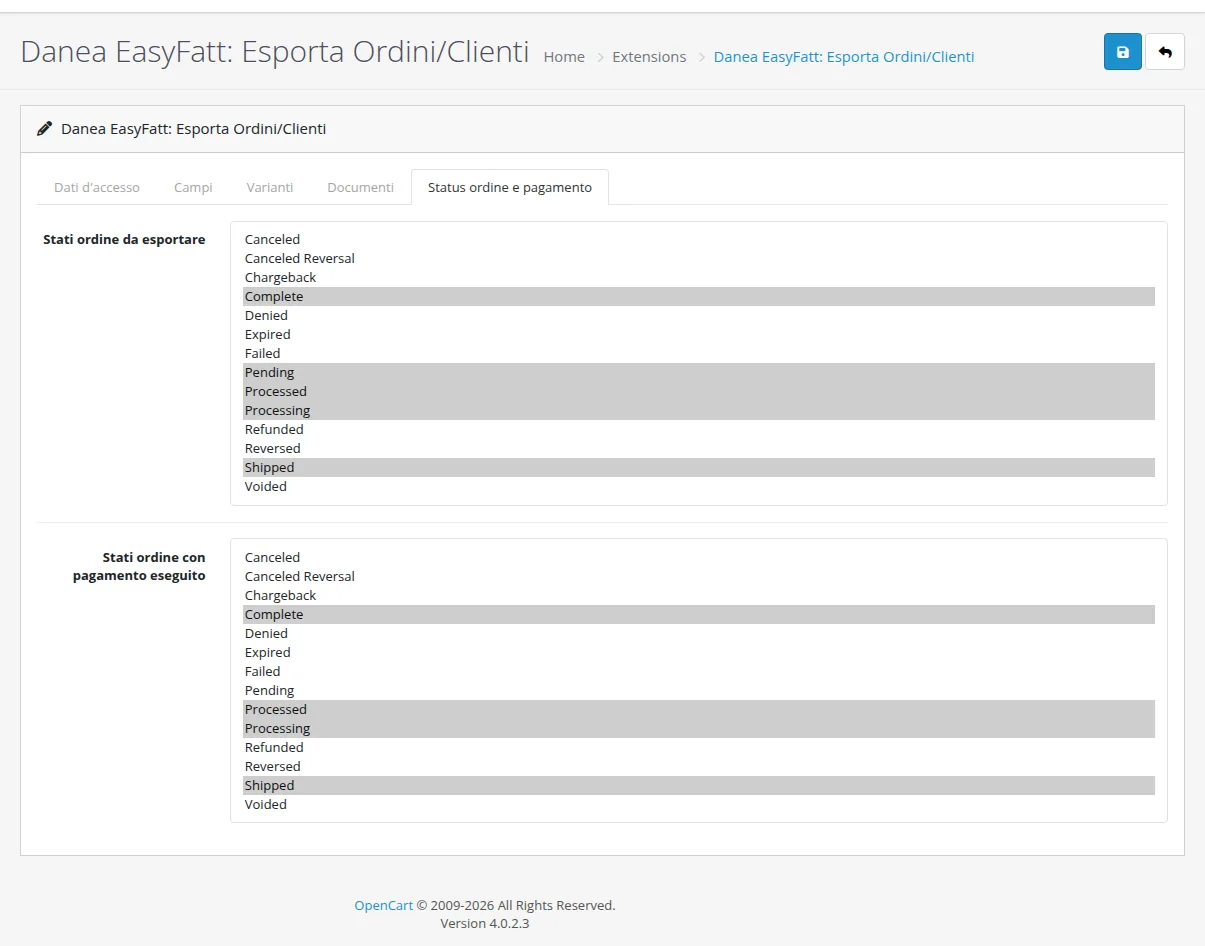
The chosen statuses are in grey. To choose more than one hold Ctrl. - 6
Payments and tax rates
From the Danea EasyFatt menu open Tipi Pagamento and match each OpenCart payment to the name you use in Easyfatt, for example
codto «Contrassegno». Then open Categorie IVA and match each OpenCart tax rate to the Easyfatt VAT code, for example 22.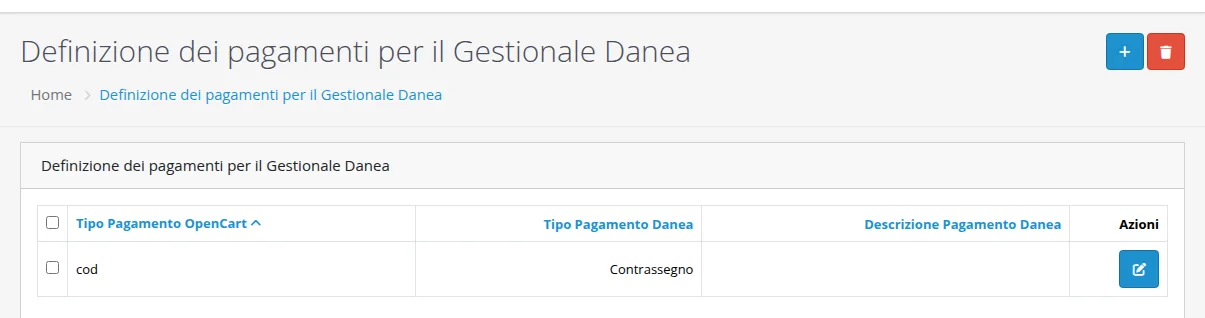
OpenCart's cash on delivery becomes «Contrassegno» in Easyfatt. 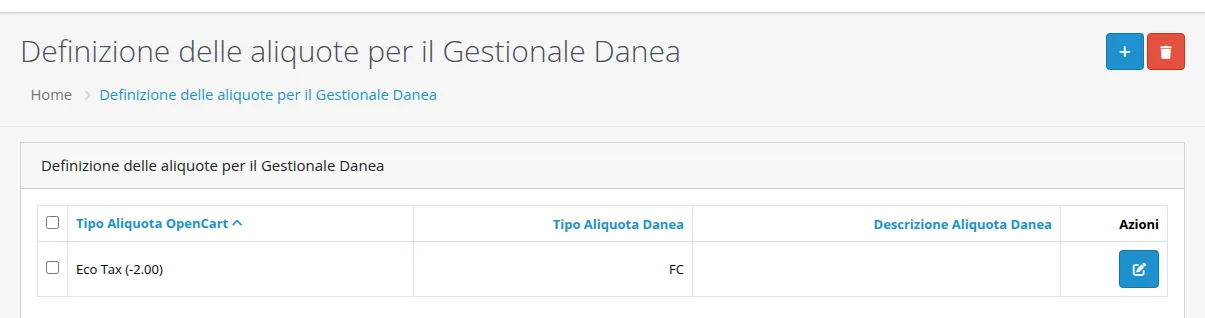
One match for each tax rate you use in the store.
Sending the catalogue from Easyfatt to OpenCart
- 1
Copy the address
From the menu open Danea EasyFatt › Importa/Aggiorna Catalogo. At the top you find the address to give Easyfatt, which looks like this.
https://www.tuonegozio.it/admin/index.php?route=extension/imeiedeopc/api/danea&DaneaAction=ImportInstead of
adminthere is the name of your panel folder, if you changed it. Below it every catalogue received is listed.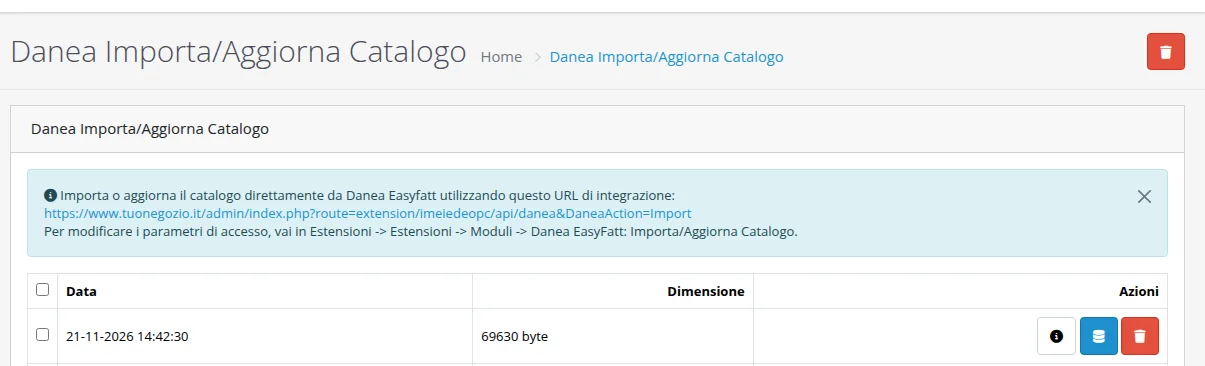
The address for Easyfatt and the catalogues received, each with its report. - 2
Paste it into Easyfatt and click Invia
In Easyfatt open Strumenti › Aggiorna prodotti su e-commerce. In the Impostazioni tab paste the address, enter the administrator's username and password and click Invia. From the second time on, in the Stato tab, tick Invia solo voci modificate, so only the products that changed are sent.
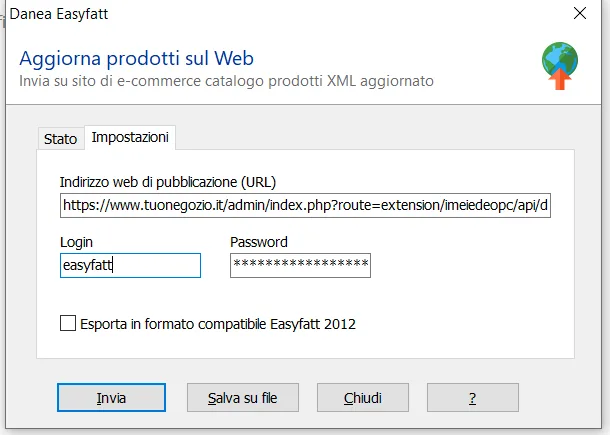
Store address, user and password, nothing else. 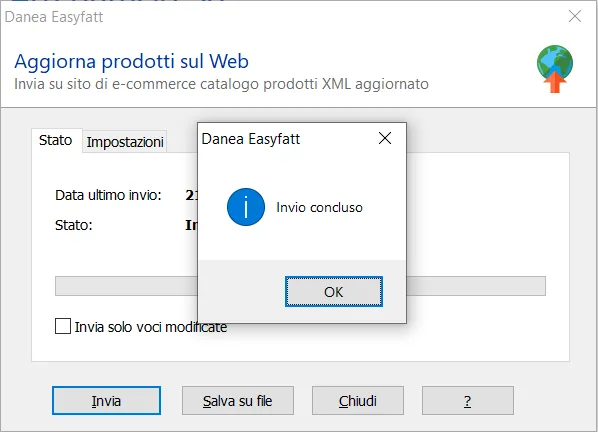
Easyfatt confirms the upload. - 3
Check the report
In the list of catalogues, the details button shows how many products arrived, how many are new, updated or removed, how many categories and manufacturers were created and whether there were errors.
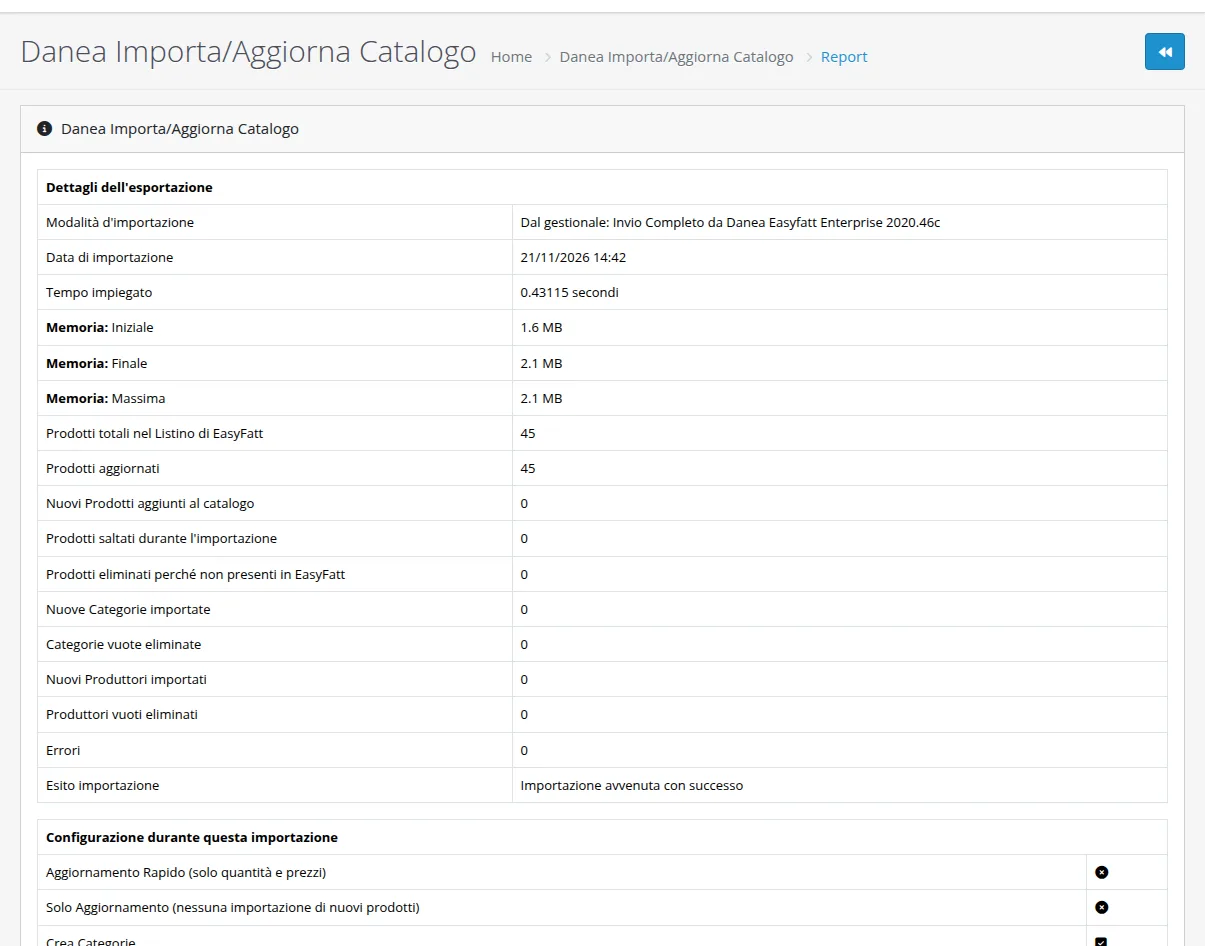
45 products updated in under half a second, no errors.
Downloading orders into Easyfatt
- 1
Copy the orders address
Open Danea EasyFatt › Esporta Ordini/Clienti. The address is the same as before, but ends with
DaneaAction=Export. Below it you find every download made by Easyfatt and, if you prefer, you can create a file by hand for a range of dates or order numbers.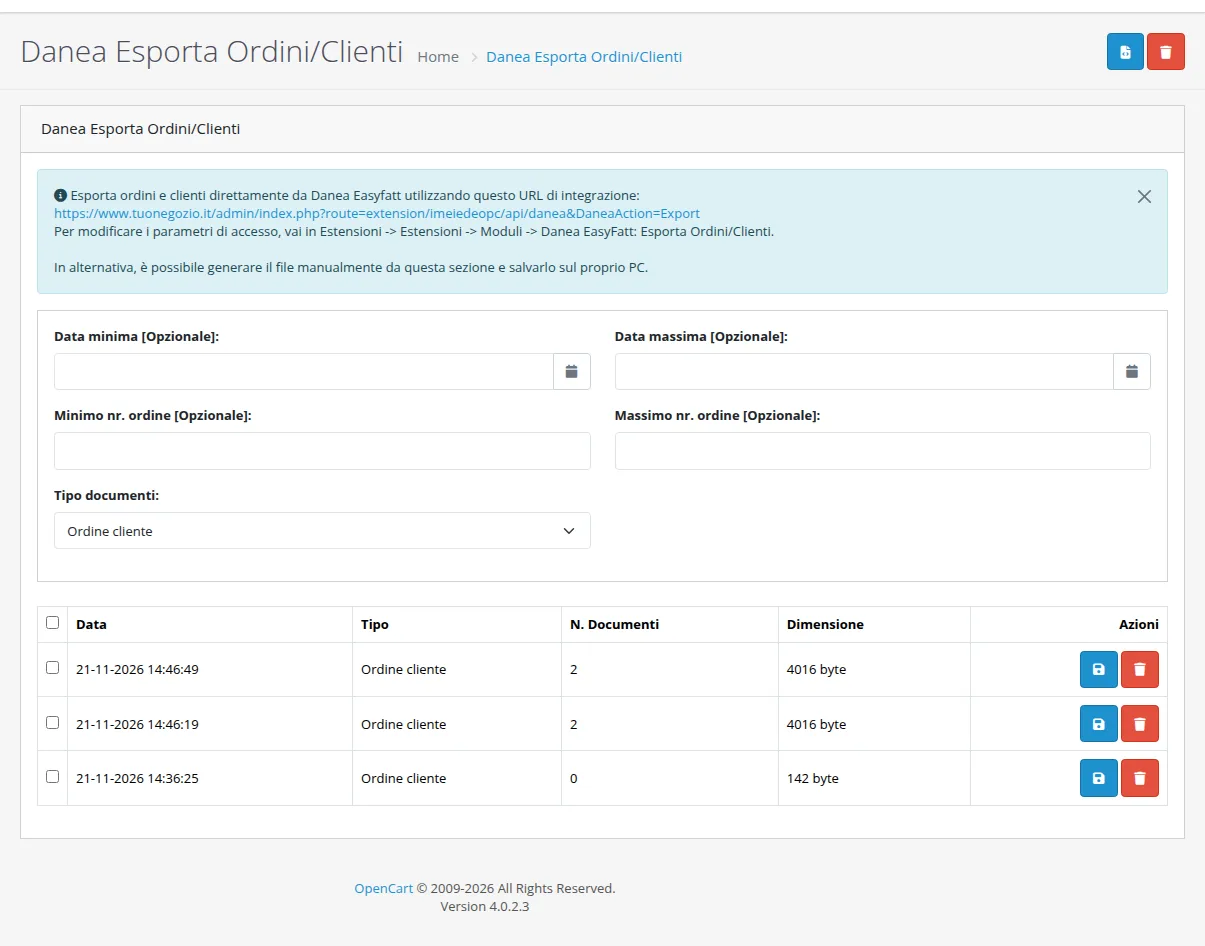
The downloads made by Easyfatt, with the number of orders in each. - 2
Download from Easyfatt
In Easyfatt open Strumenti › Scarica ordini da e-Commerce, paste the address in the Impostazioni tab with the same user and password and click Scarica.
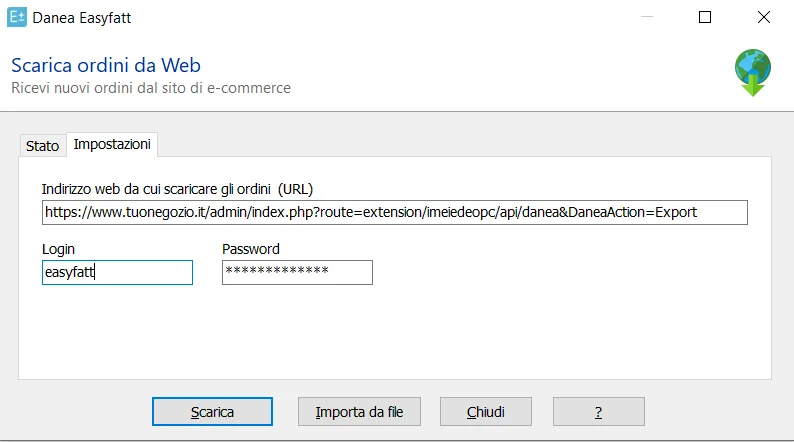
Same user, address ending with DaneaAction=Export. - 3
Import the orders and invoice
Easyfatt shows the orders that came from the store, with customer and total. With Importa each order becomes an Easyfatt document, already complete with customer, rows, VAT and payment. To invoice several orders together open Strumenti › Genera Fatture da....
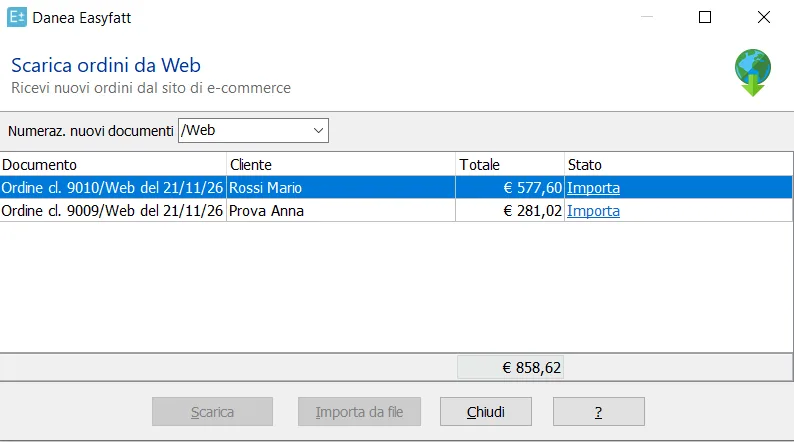
The test store's orders inside Easyfatt.
The catalogue from OpenCart to Easyfatt
If the store already exists and the catalogue is not in Easyfatt yet, open Danea EasyFatt › Esporta Catalogo and create the file: it is an Excel sheet with products, prices and variants, which you load into Easyfatt with its Excel import. From then on you keep the catalogue in Easyfatt and send it to the store as above.
If something goes wrong
Danea EasyFatt does not appear in the menu, or the pages go back to the login
The permissions are missing, or the module was not uploaded through the Installer. Check in System › Users › User Groups that the extension/imeiedeopc entries are ticked under Access and Modify and reload the page.
I cannot find the e-commerce items in the Easyfatt Strumenti menu
Danea includes the e-commerce connection in the Enterprise One and Enterprise editions of Easyfatt. Check which edition you have, because with the others the module has nothing to connect to.
Easyfatt replies «Controlla nome utente e password»
The user and password entered in Easyfatt are not the same as the module's access details. Copy them identically in both places.
Easyfatt replies «Autenticazione amministrativa fallita» or «Utente amministratore non trovato»
The credentials match, but OpenCart has no administrator with that username and password, or it is disabled. Check in System › Users › Users and, if you change the password, update it in the module and in Easyfatt.
Products arrive with a price of zero
No price list is assigned to the price. In Importa/Aggiorna Catalogo, Dati Prodotti e Categorie tab, set Assegna Listino 1 to Prezzo Prodotto and send the catalogue again.
Products that are not in Easyfatt have disappeared
The removal of products outside the price list is on. Set it to No in the Funzioni di importazione tab, if the store also sells products you do not manage in Easyfatt.
In Easyfatt the VAT arrives as «FC»
That product's tax rate is not matched in Categorie IVA. Add the match, or enter in Esporta Ordini/Clienti, Campi tab, the VAT code to use when the rate is missing.