
- Over 350 Magento stores use it with an active licence
- 4.9 out of 5 from 32 reviews
- €200 one-off, no subscription
Why a ready-made module
You could write a connection between Easyfatt and Magento from scratch, perhaps with help from an AI. But that means studying the Danea XML format, matching tax rates and payment methods, handling size and colour variants, price lists, photos and categories, importing in batches so Magento does not freeze, and then reworking everything every time Magento or Easyfatt is updated.
The module already does all of this and is used every day by real stores. You buy it, install it and send your first catalogue within minutes. If something does not add up, the person who wrote it answers you, with 3 months of support included.
What it does
- Products, prices from 9 price lists, stock, HTML descriptions and photos go from Easyfatt to Magento.
- The module creates any categories and manufacturers that Magento is missing.
- Orders and customers go from Magento to Easyfatt, with tax code, recipient code and PEC for Italian e-invoicing.
- You can send the whole catalogue or only the products that changed, and update just prices and quantities.
What you need
- Easyfatt Enterprise One or Enterprise, the two editions that Danea connects to e-commerce.
- Magento 2. There is one version of the module for Magento 2.3.4 and later and another for Magento 2.0 to 2.3.3, and you choose it when you buy.
- Magento cron running on the server, as for almost any extension.
- The module, €200 one-off with 3 months of support and a refund within 60 days.
Before buying you can try it on the Magento demo, with the access details shown on the module page, and even send it the catalogue from your own Easyfatt.
Installing the module
- 1
Upload the files
Copy the contents of the
uploadfolder from the archive into the Magento root folder, by FTP or from your hosting panel. - 2
Enable the module
From a terminal, in the Magento folder, run these four commands. They are the same ones you use for any Magento extension.
bin/magento module:enable Webprojectsol_DaneaEasyFatt
bin/magento setup:upgrade
bin/magento setup:di:compile
bin/magento setup:static-content:deploy it_IT
The Magento menu now shows Danea EasyFatt, with everything you need in one place.
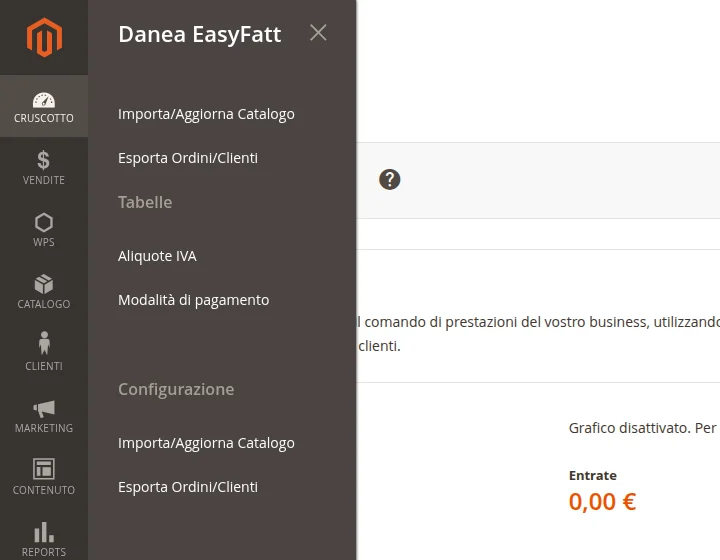
The module menu, with catalogue, orders, tables and configuration. - 3
Follow the guided setup
The first time you open the menu, the module checks the licence and the Magento cron by itself, then measures how many products your server imports in one go. Click Get the value, wait about a minute and save the result. From then on the catalogue comes in batches of the right size for your server.
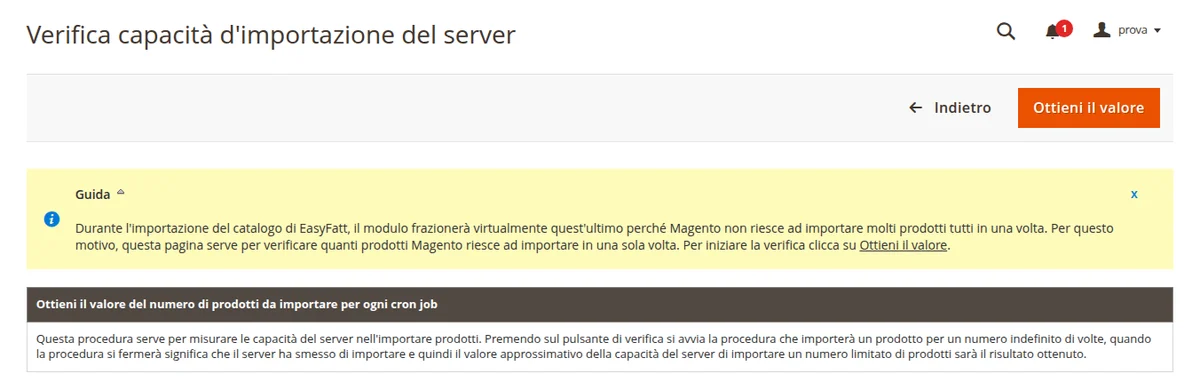
The server check, the last step of the guided setup. - 4
The licence is already there
If you bought the module on this website, the licence for the domain you entered in the order is activated automatically when the order is completed. You can add a test domain in the same order, before putting the module in the cart.
Configuring Magento
You configure it once. After that, updating the store takes one click in Easyfatt.
- 1
Create a user for Easyfatt
Easyfatt connects to the store with a Magento admin user. It is best to create one just for it, for example
easyfatt, so you always know who did what and can change its password whenever you like. - 2
Enter it in the module
Open Danea EasyFatt › Configuration › Import/Update Catalog and enter the user and password under Access data for updating catalog direct from the management. On the same page you choose how to handle the catalogue, for example only prices and quantities withFast Update.
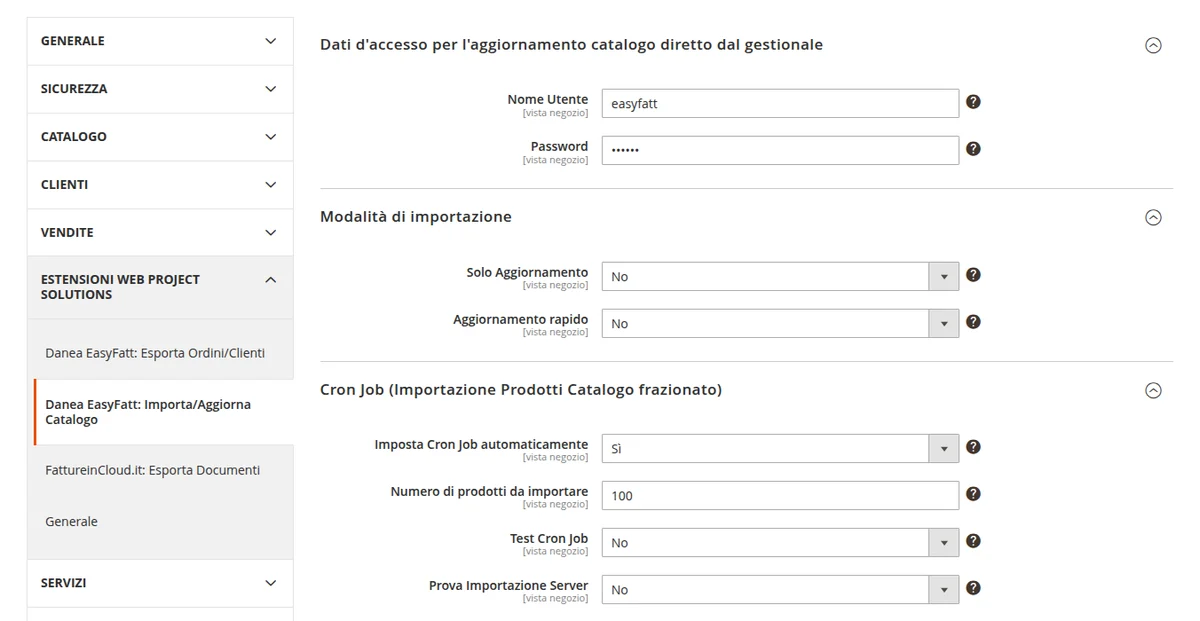
Access data, import mode and cron, already filled in. Further down you decide what the module does on every upload. It can create missing categories, remove products that are no longer in Easyfatt, delete categories left empty and use the Easyfatt notes as the description.
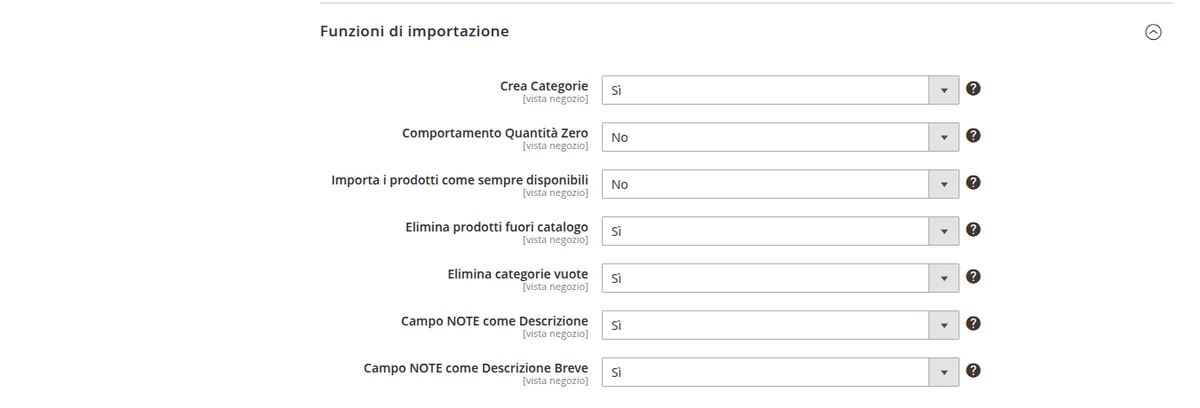
The import functions, one per line, each with its own Yes or No. - 3
Match VAT and payments
In Danea EasyFatt › VAT Rates you match each Magento tax rate to the Easyfatt VAT code, and you do the same in Payment Type. This is what makes every order reach the accounting software with the right VAT and payment method.
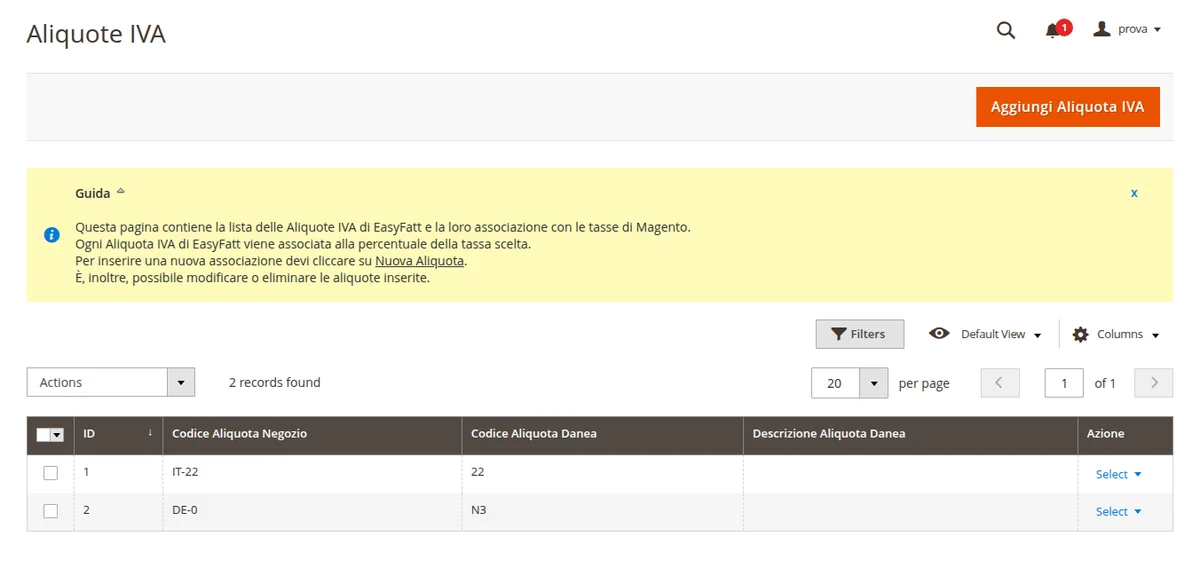
Two matches are enough to start, for example 22 and N3. - 4
Prepare the orders
In Configuration › Export Orders/Customers enter the same user, choose which order statuses go to Easyfatt and which fields hold the tax code, recipient code and PEC, if another checkout extension collects them.
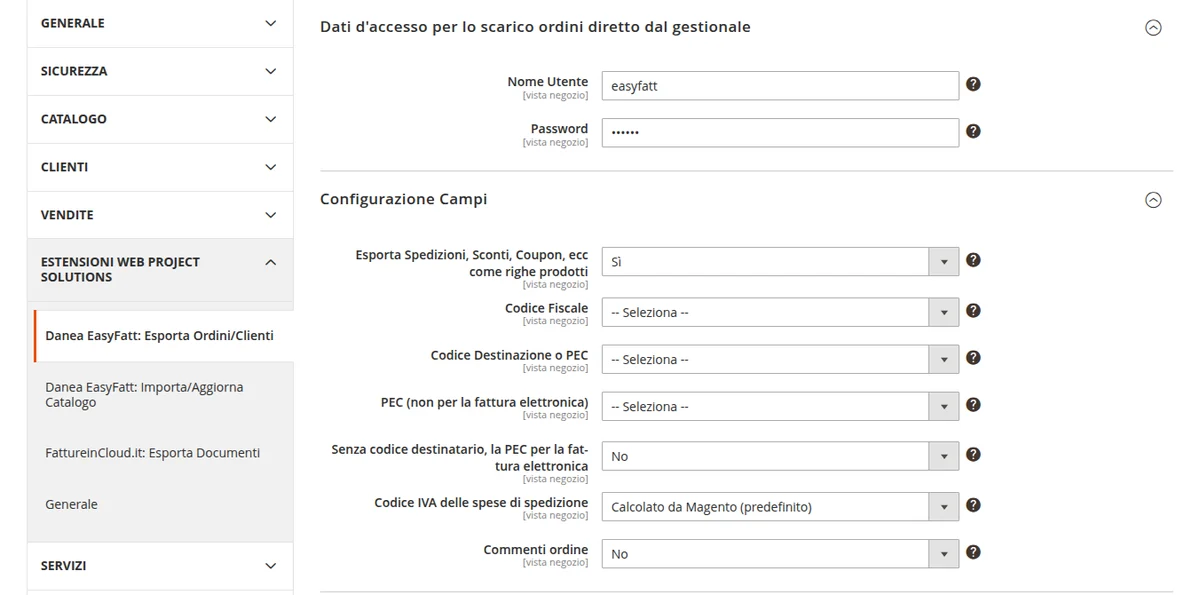
The e-invoicing fields are picked from a drop-down list.
Sending the catalogue from Easyfatt to Magento
- 1
Copy the address
In Danea EasyFatt › Import/Update Catalog click Link to the Import/Update directed by EasyFatt. The address looks like this.
https://www.tuonegozio.it/pub/danea_direct.php?app=Import - 2
Paste it into Easyfatt and click Invia
In Easyfatt open Strumenti › Aggiorna prodotti su e-commerce (in older versions Strumenti › E-commerce › Aggiorna prodotti). In the Impostazioni tab paste the address, enter the user and password and click Invia. From the second time on, in the Statotab, tick Invia solo voci modificate, so that only the products that changed are sent.
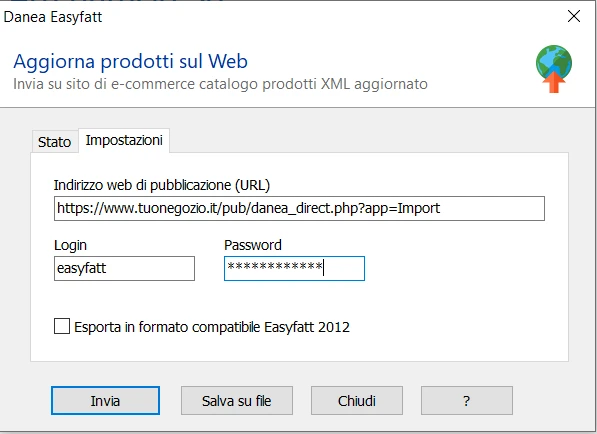
In Easyfatt three fields are enough, the store address, the user and the password. - 3
Watch the catalogue arrive
The catalogue appears in the Import/Update Cataloglist. The module splits it into batches and imports them one after the other, so even thousands of products do not slow the store down.
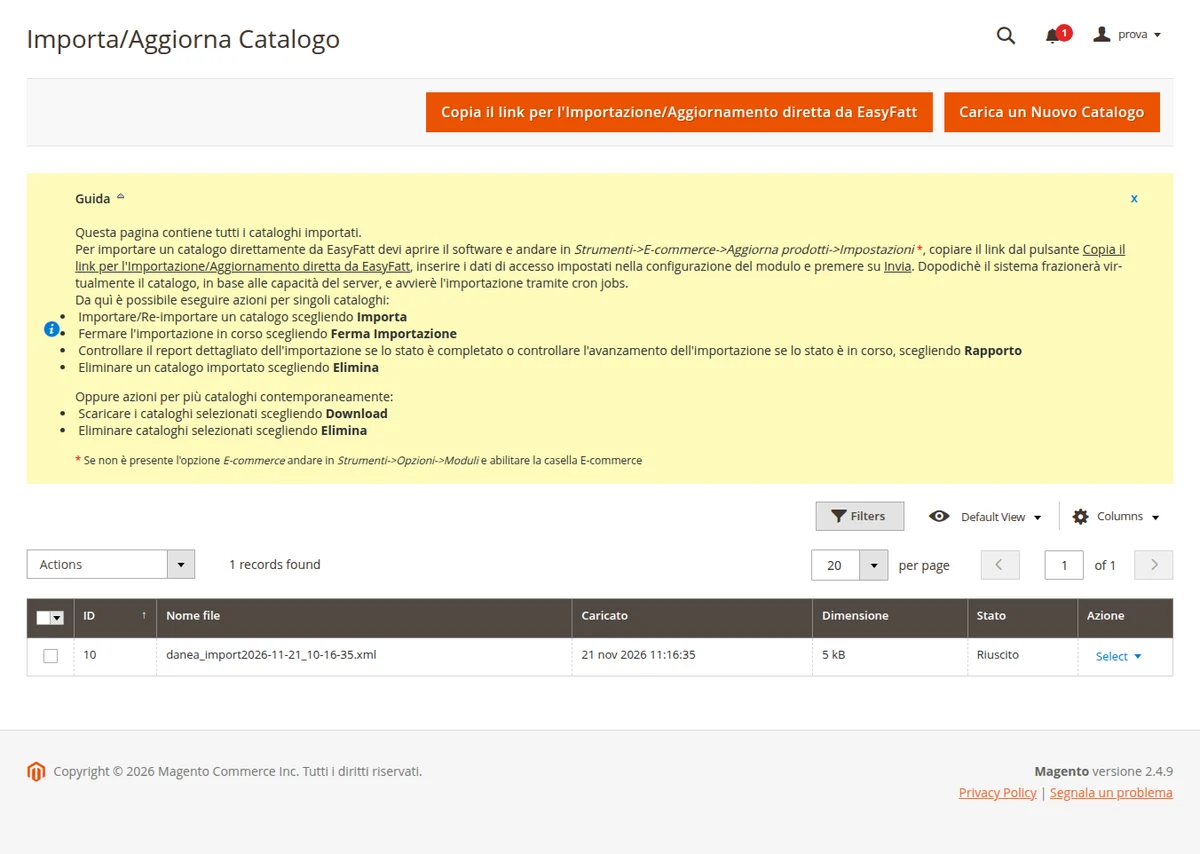
The received catalogue, with the button for copying the address to give to Easyfatt. - 4
Check the report
At the end, Report shows how many products are new, how many were updated or removed, how many categories were created and whether there were any errors.
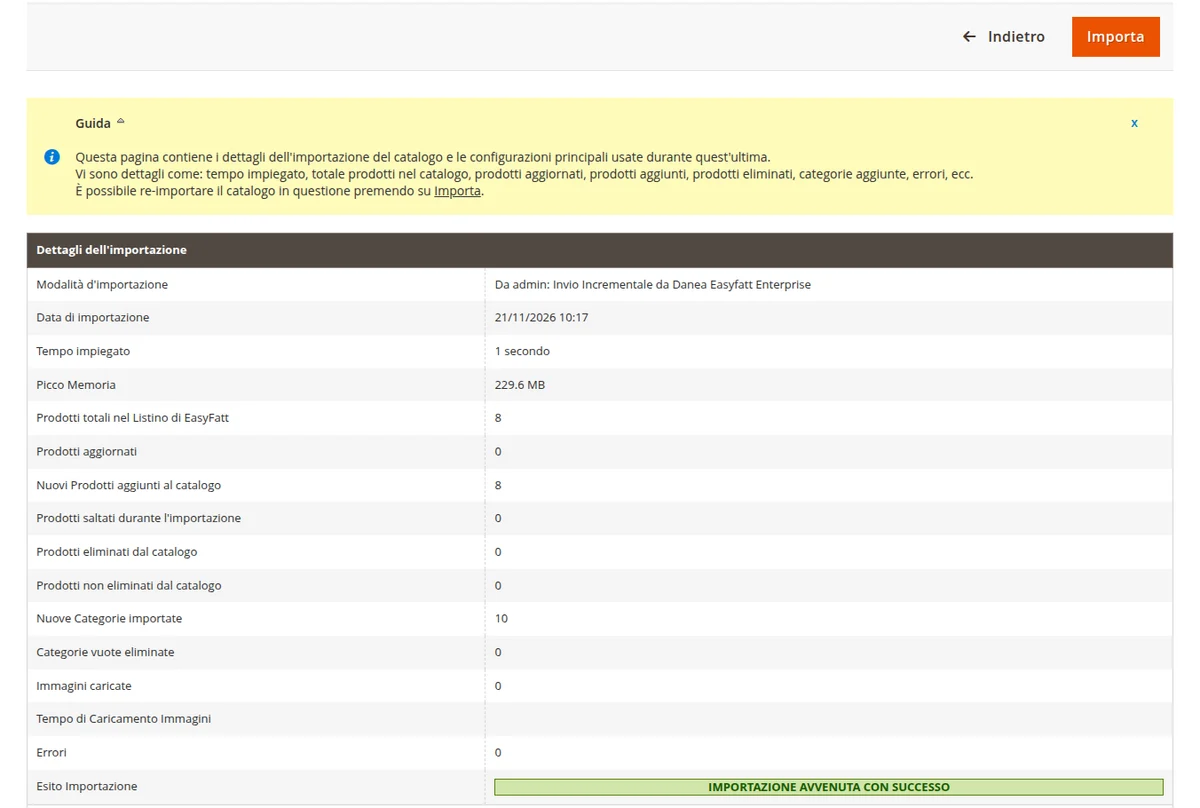
Eight new products and ten categories created in one second, with no errors.
If you do not want the direct connection, click Salva su file in Easyfatt and upload the file in Magento with Upload New Catalog. This way, however, the photos are not sent.
Downloading orders into Easyfatt
- 1
Copy the orders address
In Danea EasyFatt › Export Orders/Customers click Link to the Export Orders/Customers directed by EasyFatt. This time the address ends with
app=Export.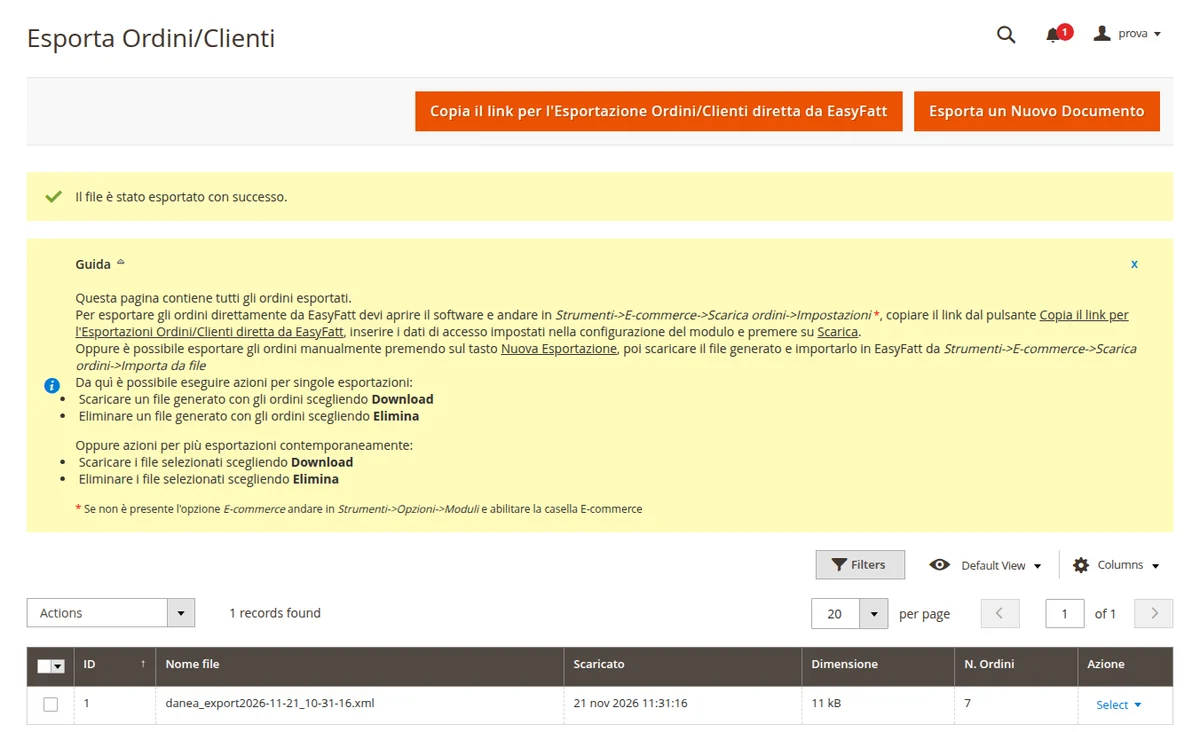
From here you copy the address for Easyfatt, or create a file by hand with «Export New Document». - 2
Download from Easyfatt
In Easyfatt open Strumenti › Scarica ordini da e-Commerce (in older versions Strumenti › E-commerce › Scarica ordini), paste the address into the Impostazioni tab with the user and password and click Scarica. Easyfatt starts again from the first order it has not imported yet.
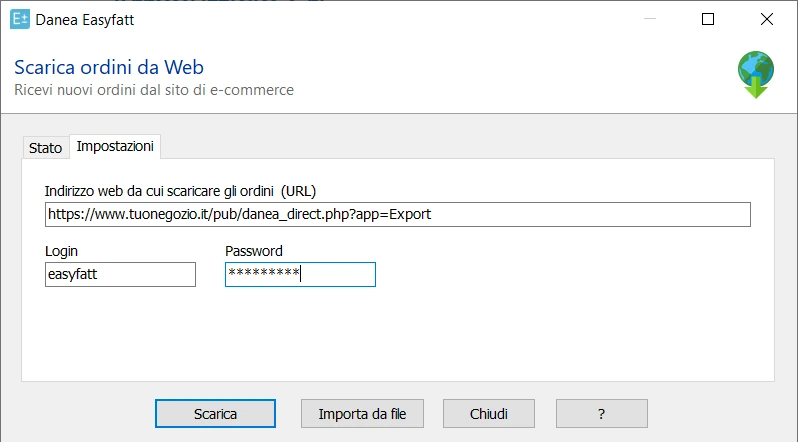
Same user, address ending with app=Export. - 3
Import the orders and invoice them
Easyfatt shows the orders that came from the store, with customer and total. With Importa each order becomes an Easyfatt customer order and reserves the goods in stock. Then, to invoice them all at once, open Documenti › Fatture and click Genera da....
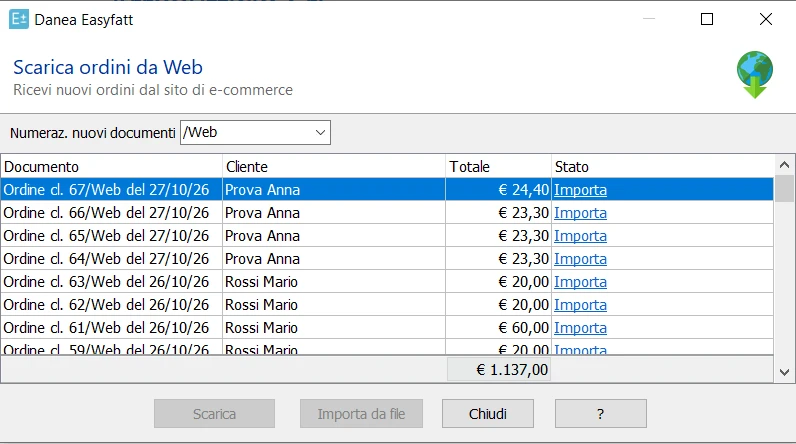
The store orders inside Easyfatt, each with its own Importa button.
If something goes wrong
I cannot find the e-commerce items in the Easyfatt Strumenti menu
Danea includes the e-commerce connection in the Enterprise One and Enterprise editions of Easyfatt. Check which edition you have, because with the others the module has nothing to connect to.
Easyfatt replies «Admin authentication failed»
The user and password entered in Easyfatt must belong to a Magento administrator that really exists, and must be the same as those entered in the module configuration.
The import stays «Pending»
Almost always the Magento cron is not running. Check that bin/magento cron:run starts every minute, then stop the import and send the catalogue again.
The server check gives no value
Enter the value yourself. In Configuration › Import/Update Catalog set Number of products to be imported to 100 and Try Import Server to No.
The photos do not arrive
Easyfatt sends the photos by FTP with the details entered in the module. Errors such as «read timed out» or «connection refused» come from the network, for example a firewall on the PC or a block on the server. Try from another network and, if that is not enough, ask your hosting to open FTP.
How does the module know two products are the same?
By the code. The Easyfatt Cod. prodotto matches the Magento SKU, so a product with the same code is updated instead of duplicated.
I have several stores in the same Magento
The module has separate settings for each store view. Configure each one and in Easyfatt use the address copied from that view.